A pile of files.
Unclear names. Everything mixed together.
Downloads
scan001.pdf
signed_final_v2.pdf
New folder (2)
IMG_4821.jpg
document (2).pdf
export (3).xlsx
Desktop backup
attachment.pdf
invoice_FINAL.pdf
to sort
new document.docx
Scan 14.pdf
Connect your account, understand the access you grant, and organize documents in your Drive—with clear controls for processing and your connection.
ORDER, WITH CONTROL
A clearer filing system. Your Drive. Access you choose.
Unclear names. Everything mixed together.
Clear folders and names, guided by your rules.
Organized documents stay in your connected Google Drive. Disconnecting does not delete them.
TLS protects data as it travels between services.
TLSAccess files created by Sortify or explicitly made available to it. Choosing a folder does not grant access to every file inside.
Connected credentials are handled with encryption. Authorized services use them for the actions you request.
 Sign in with GoogleDemo
GET CONNECTED
Choose the account. Review access. Confirm where your files go.
Open Storage, select Google Drive, and connect the Google account you want to use.
Read Google’s access request before continuing. The preview shows limited access; some features need full access.
Back in Sortify, check connection and upload access. Review your workspace folder and folder structure.
YOUR PERMISSIONS
Your chosen workspace folder guides filing. It is not a Google-enforced permission boundary.
FROM DOCUMENT TO FOLDER
Your folder structure and naming settings guide how documents are organized in Drive.
For example, an invoice can be filed under Invoices / 2026 with a name based on your naming rules. The document content and your template determine the actual result.
Upload → classify → name → file. Review the processed document and correct its details when needed. Upload and classification can finish at different times; check the result before submitting the same file again.
Looping preview · does not change your settings
OPTIONAL AUTOMATION
Enable automatic classification for your Drive inbox.
The workspace owner must enable automation with a configured folder structure. Connecting Drive alone does not enable it. Supported files must be directly inside Unclassified; subfolders are not scanned.
Checks usually run within a few minutes. Existing files may also use your classification allowance. Review skipped-file reasons.
Turning automation off stops future checks; queued files may still finish. Your Drive connection and stored files remain.
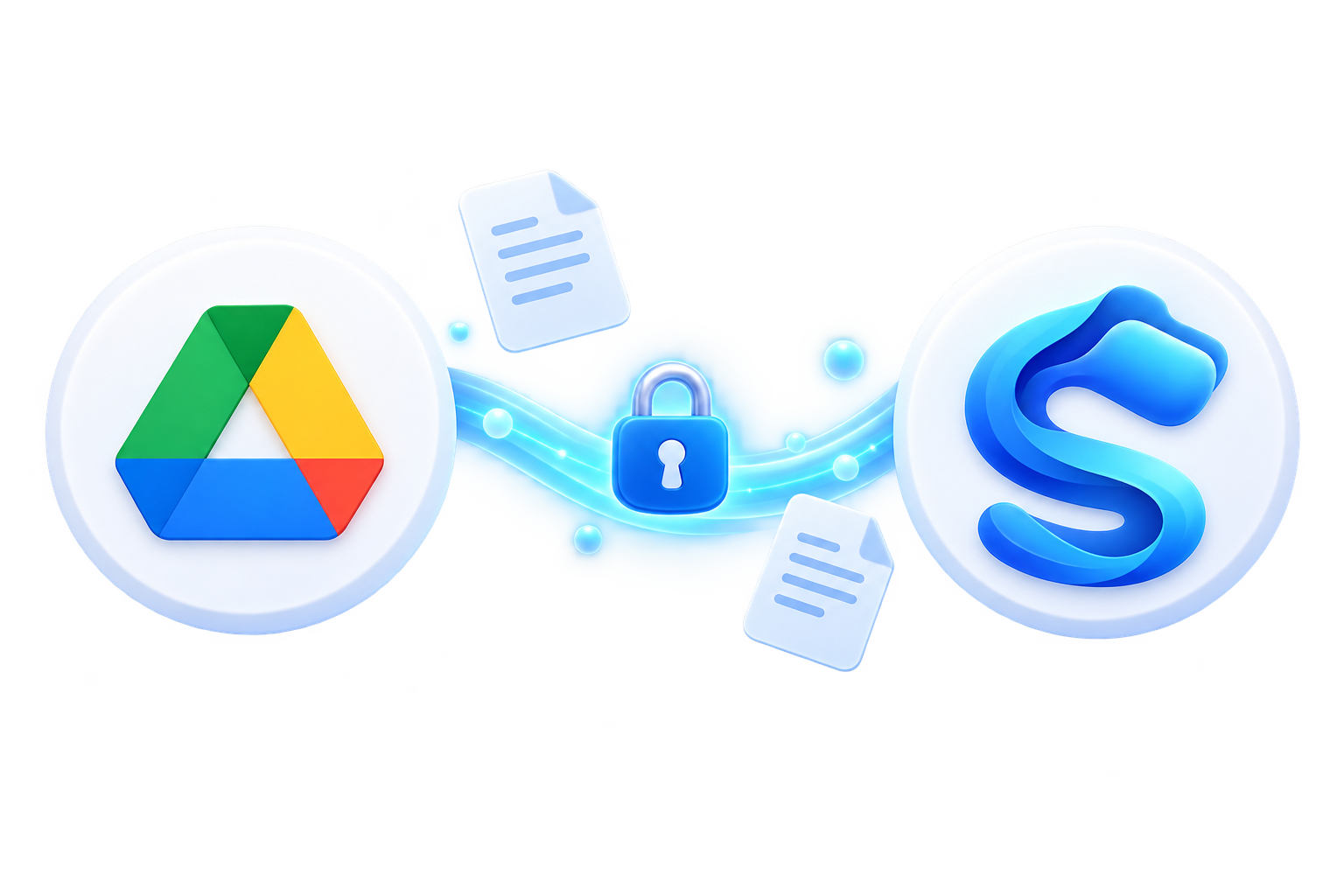
Image: secure transfer and encrypted credentials
DATA PROTECTION
Protection during transfer. Encrypted credentials. Clear limits during processing.
TLS protects data in transit. Drive credentials use encrypted handling; authorized server operations can use them for the features you request.
This does not promise identical encryption for every document, cache, or downloaded copy.
Image: readable documents and AI processing
AI PROCESSING
AI document processing is not end-to-end encrypted. It needs readable content or extracted information.
Some workflows use temporary cloud copies or file-link access. Removing access does not erase copies a provider already received. Processing and retention depend on the provider and configuration. Not using data for training does not mean zero retention.
Review AI consent in Account and choose which documents you submit.
AN EVERYDAY EXAMPLE
An accountant asks Alex for an invoice already filed in Google Drive. With the required access available, Alex finds the document in Sortify, checks the recipient, and sends it through the connected email account.

Interactive illustration · example connection
Try disconnecting, then reconnecting. This preview does not change your account. In the app, reconnecting may require Google authorization.
STAY IN CONTROL
Your connection and your documents are separate. Try the example to see what changes—and what stays.
If access is missing or expired, check the Google account and use the repair or reconnect action. Review Google’s permission request, confirm the connection status, then retry the affected action where offered.
Disconnecting or revoking access can stop connected operations. It does not delete your Drive documents or recall downloaded and emailed copies. Changing storage does not automatically move existing files.
Team roles and Google permissions are separate. Withdrawing AI consent does not undo earlier processing. Deleting a history record is different from deleting its source file; retention varies by data category.
GOOGLE DRIVE · YOUR QUESTIONS
A few things to know before your first file.
 Have another question?Let’s talk
Check the connected Google account and active access level. Limited access may exclude existing files. If access has expired, use the repair or reconnect action, then retry where offered.
GOOGLE DRIVE
Sign in, open Storage, and review your access before the first upload.